by Richard Jones | Oct 28, 2024 | Business, Microsoft, New Technology, Productivity, Working from Home
If you’ve ever tried to tweak a setting in Microsoft Edge and found yourself lost in all the options, this one’s for you.
Microsoft is cleaning up the Settings page, so you’ll no longer need to dig around in endless menus to find the setting you need.
What’s changing?
You’ll see a new quick access panel under the main Settings menu, giving you shortcuts to the features you’re likely to use the most.
Settings will also be split into smaller submenus, like “System and Performance” and “Appearance”, making it easier to find exactly what you want.
Better yet? The submenus will have their own quick access shortcuts too.
The improvements will give Google Chrome (which has been praised for its well-organised settings) a run for its money. So if your team doesn’t already use Edge as their default browser, it’s a great time to give it another try.
Microsoft is currently testing the update, and it should start rolling out soon. Once it does, you can expect much smoother navigation.
If you need help making the most of the new features in your business, we can help. Get in touch.
by Richard Jones | Oct 14, 2024 | Business, Microsoft, New Technology, Productivity, Working from Home
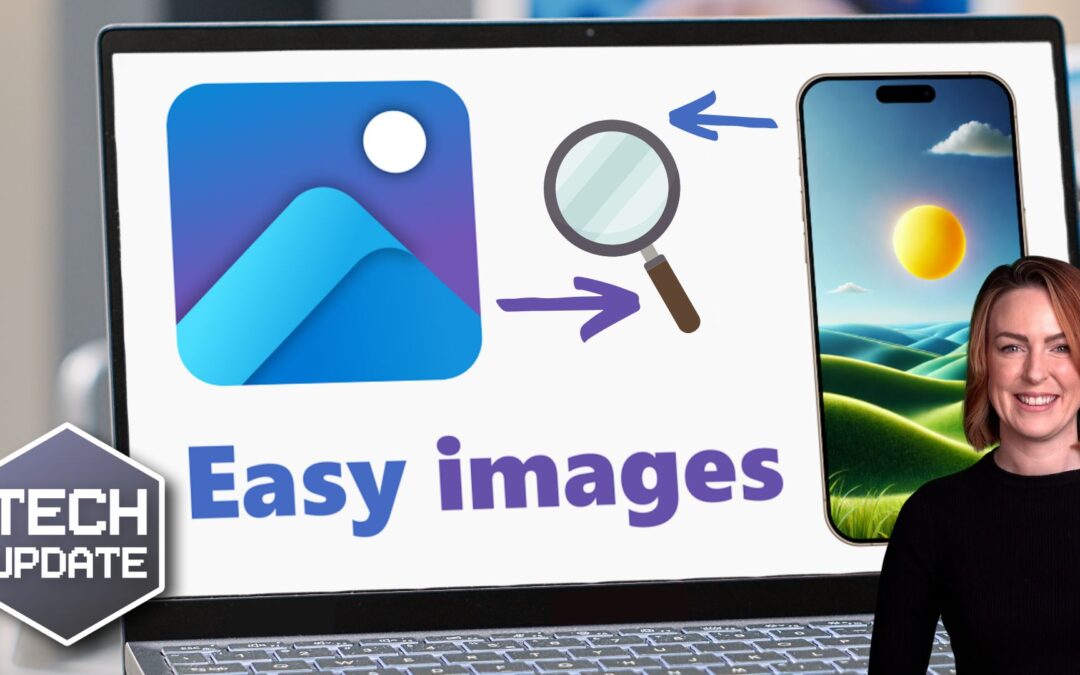
You might think of the Windows Photos app as a basic tool for viewing and managing images. But with an upcoming update to Windows 11, there’s a new feature that could be very useful for your business: Visual Search with Bing.
With the update, you’ll be able to do a reverse image search straight from the app, showing you similar images and related information.
How can this benefit your business?
Let’s say you’re looking at a photo and you want to know more about a product, place or person in the image. Reverse image search is a faster way to get the information you need.
It’s a great tool for eCommerce store owners – you can use it to find out who else is selling a product, compare pricing, or track down new suppliers.
Marketing teams can also use it to easily find similar visuals to use in campaigns, or to make sure images aren’t being used elsewhere. It also helps you check the origin of an image to make sure you have permission to use it.
If your business is in property or research, you can save time by using reverse image search to quickly identify the locations or objects you see in photos.
Microsoft has also made it easier to flick through your photos and edit images by improving navigation and introducing a quick access editing tool right in the app.
Another big bonus: You’ll now be able to sync Photos with iCloud – great for teams that use Apple devices alongside their Windows PCs.
These features should be rolling out soon in a future Windows 11 update.
If you haven’t already upgraded your business to Windows 11, it’s time to start thinking about it. We can help make it easy – get in touch.

by Richard Jones | Oct 7, 2024 | Business, Microsoft, New Technology, Productivity
Whether you’re drafting emails, writing reports, or creating presentations, spelling mistakes and typos can easily be missed. This means you run the risk of looking unprofessional, especially when communicating with clients or business partners.
Here’s the good news: Windows 11 comes with built-in spell check and autocorrect tools that can put an end to embarrassing spelling mistakes.
These tools are easy to set up. And once that’s done, you won’t need any extra software to make sure your text always looks clear and professional.
Want to know how to use them?
First, open Windows Settings. Then select Time & Language and click on the Typing page. From there, you can turn on options like ‘Autocorrect misspelled words’ and ‘Highlight misspelled words’.
These features will work across most apps, fixing errors and flagging possible spelling mistakes.
You can even get word predictions as you type by enabling text suggestions.
Does your business run in multiple languages? Be sure to switch on the ‘Multilingual text suggestions’ feature. This will bring up word suggestions in whatever language you are using.
While the spelling tools built into Windows 11 will work across most apps once enabled, some apps (like Notepad and Outlook) need a little extra set up.
For example, in Notepad, you’ll need to click the gear icon for settings to switch on the spell check feature.
Your team probably spends a lot of time in Outlook sending emails, so it’s well worth switching on grammar tools here. Go to Editor Settings under the Options tab. From there, you can turn on features like autocorrect, text predictions, and even tone adjustment.
And if your team uses Microsoft Edge for browsing, you can set up spell check and grammar tools there as well. Just head to Settings, click on Languages, and turn on the grammar and spell check options.
By setting up spell check and autocorrect in Windows 11, you’re not just avoiding small mistakes – you’re helping your business run more smoothly.
If you need a hand with this or want more advice on how to save time in your business, we can help. Get in touch.

by Richard Jones | Oct 4, 2024 | Business, Microsoft, New Technology, Productivity
Imagine having an assistant by your side that never gets tired, never misses a detail, and can help with everything from drafting emails to organising meetings.
Sounds great, right?
Well, that’s what Microsoft Copilot is. It’s a smart, AI-driven tool built into the Microsoft apps you already use, like Word, Excel, and Teams. It’s designed to handle time-consuming tasks that slow your team down.
But how exactly does it work, and why should you care?
In simple terms, Copilot is AI embedded into the Microsoft Office suite. It’s always there to assist you, whether you’re typing up a report, analysing data in Excel, or even planning your next big meeting. And the best part is, you don’t need to be tech-savvy to use it. If you can use Word, you can use Copilot.
So, how can it make a difference in your business?
First off, one of the most exciting things about Copilot is that it’s seamlessly integrated into the software you already know. There’s no need for complicated installations or training sessions. And because it’s built into Microsoft 365, your team can jump right in with minimal disruption. It works across devices too, so whether you’re in the office or travelling, Copilot is always there.
One area where Copilot really shines is how it simplifies your daily grind. Think about how much time gets wasted on things like sorting through emails or organising meetings. We’ve all been there, spending way too long combing through endless email chains or trying to figure out who said what in a meeting.
Copilot tackles this for you. It can summarise long email threads and even suggest responses, so you can get back to what really matters. It’s like having someone do all the heavy lifting while you focus on the more important tasks.
Speaking of meetings, Copilot is a big help when it comes to collaboration. Let’s say you’re wrapping up a Teams call. Instead of manually taking notes or worrying about missing key action items, Copilot will summarise the entire meeting for you, highlighting decisions and tasks. It listens in, captures the key points, and even helps you plan the next steps.
But Copilot isn’t just about cutting down on admin work, it’s also a creativity booster. You know that moment where you stare at a blank document, unsure how to start? Whether it’s drafting a client proposal or putting together a presentation, sometimes the hardest part is getting the ball rolling.
That’s where Copilot comes in. Give it a few prompts, and it’ll generate a first draft or outline to get you started. You don’t have to be a creative genius to produce something great. Copilot takes care of that early-stage work, freeing you up to fine-tune and add your personal touch.
All this leads to a more productive, efficient, and creative workplace. That’s what makes Microsoft Copilot such a powerful tool. It not only takes care of the little things but also helps you unlock your team’s full potential.
Want to find out what Copilot could do for your business? We can help, get in touch.
by Richard Jones | Sep 23, 2024 | Business, Business Continuity, Cybersecurity, IT Management, Microsoft, New Technology, Working from Home
With the end of support for Windows 10 just over a year away, many business owners are starting to wonder why they haven’t upgraded to Windows 11 yet. Are you one of them?
Research shows that most businesses could make the switch, but a surprising number are still holding back. This despite the upgrade being free and easy.
A recent survey of more than 750,000 Windows 10 systems found that 88% are on hardware that’s fully capable of moving to Windows 11.
Yet, 82% of businesses haven’t taken the plunge.
This is worrying, especially with the clock ticking down to the deadline in October 2025. After then, Windows 10 won’t get any more free updates, including all-important security patches. That could leave your business exposed to risks.
So, what’s the hold-up? For many, it’s the fear of disrupting business operations. Upgrading an entire business’s operating system might sound like a hassle, with concerns about downtime or technical headaches.
But the truth is, upgrading to Windows 11 can be a lot easier than you think, especially with expert assistance (contact us if we can help you with this).
And there’s more to it than just avoiding the risks of sticking with an outdated system. Windows 11 comes with so many benefits:
- Better security to keep your business safe from modern threats
- Improved performance to boost productivity
- And a sleek, intuitive interface that makes work easier for your team
Plus, if you are using newer hardware, Windows 11 will let you make the most of it.
The upgrade from Windows 10 to 11 is free if your devices meet the requirements.
With so many advantages and the deadline fast approaching, there’s no reason to wait.
We help make all upgrades as easy as possible. Let’s jump on a call and we’ll tell you about our extensive preparation, when we schedule upgrades, how we train your team – and answer all your questions.
Our goal is to get you up and running on Windows 11 without disrupting your daily operations. Let’s talk.

by Richard Jones | Aug 26, 2024 | Business, Cloud, Microsoft, New Technology, Productivity, Working from Home
There’s an exciting new feature coming to Microsoft’s Edge browser that’s going to make your life – and your employees’ lives – a whole lot easier. ‘Draft with Copilot’ is an AI-powered tool that can instantly write text on any topic you need.
When you’re in Edge and you find yourself staring at an empty text field (like the body of an email or a comment box), just right-click. You’ll see an option to ‘Draft with Copilot.’
Click on it, and a window will pop up. You just enter the subject or topic you need text for, hit ‘Generate,’ and watch Copilot do its thing. In a few moments, you’ll have a piece of text on the topic you specified.
You can then change the tone and length of the generated text to suit your style. Want it to be more formal or casual? Need it longer or shorter? No problem.
We all know time is money, ’Draft with Copilot’ can help save you both. Imagine how much time your team spend on writing everyday text. With Copilot, drafting a quick email or coming up with a social media update becomes easier.
And Copilot not only helps you write faster but also makes sure the text is grammatically correct and well-structured. This is especially helpful if you’re writing in a language that’s not your native one.
Right now, this feature is only available in US English, but Microsoft is working on expanding it to more languages.
One warning: It’s important to review what it produces. Critics of AI-generated text sometimes say it can feel a bit generic. You might want to add a personal touch or specific details to make it more engaging for your audience.
This feature is currently in the Edge Canary preview build, which means it’s still being fine-tuned.
Microsoft is steadily integrating Copilot into more Windows apps, making these AI tools more accessible and versatile across different platforms. It’s clear that the future holds even more convenient AI-assisted features that will make our digital lives easier.
Not tried Copilot in your business yet? We can help you get started. Get in touch.


