
by Richard Jones | Feb 24, 2025 | Business, Cybersecurity, IT Management, Mobile, Online Presence, Productivity, Working from Home
Public Wi-Fi is everywhere these days – cafés, airports, hotels, trains. It’s super convenient, especially for business travellers or anyone working remotely.
But what if I told you that hopping on that free Wi-Fi could expose your business data to cyber criminals? That’s the reality of using unsecured public networks.
When you connect to public Wi-Fi, you’re opening the door to scammers who know exactly how to exploit these networks. The two biggest threats you need to know about are called Man-in-the-Middle (MITM) attacks and Evil Twin attacks.
Yes, they sound like something out of a spy movie… but they’re very real and can have serious consequences for your business.
Let’s start with Man-in-the-Middle (MITM) attacks. You’re sitting in a café, sending an email or logging in to your business bank account. You think your device is communicating directly with the Wi-Fi network, but in reality, a cyber criminal has inserted themself between you and the network.
This “man in the middle” can see everything you’re doing – your passwords, your emails, even your credit card details. And the worst part? You probably won’t even notice it’s happening.
Criminals use this stolen information in all sorts of ways. They might sell it to advertisers, use it to impersonate you in phishing scams (where they trick people into sharing sensitive information, like passwords or credit card details). Or even steal money from your accounts. For businesses, this could mean sensitive financial information or customer data ending up in the wrong hands.
Now let’s talk about Evil Twin attacks. Imagine you’re in an airport and see two Wi-Fi networks: One called “Airport Free Wi-Fi” and another called “Airport Wi-Fi Secure”. They both sound legit, but one of them could be a fake network set up by cyber criminals.
When you connect to the fake network, scammers can monitor everything you do online, just like in a MITM attack – but they can go even further. They can steal your cookies (little bits of data that websites use to remember you) and gain access to things like your login details or personal information.
In some cases, they can even install malware (malicious software) on your device without you clicking a single thing. Scary, right? All it takes is connecting to the wrong Wi-Fi network, then your data – and your business’s security – could be compromised.
Using public Wi-Fi doesn’t have to be a security nightmare, but you do need to be cautious. Here are some steps you can take to help keep your business protected:
- Avoid accessing sensitive information while connected to public Wi-Fi. This includes anything involving passwords, personal data, or financial accounts. If you wouldn’t want a stranger looking over your shoulder, it’s best to save it for when you’re on a secure network.
- Stick to websites that use HTTPS, which encrypts your data. You’ll know a site is secure if you see a padlock icon in the address bar or “https://” at the beginning of the web address. Most websites use this today.
- Consider using trusted browser extensions designed to boost your online safety. Many can block cookies, ads, and even malicious websites, reducing the risk of your information being exposed.
- Turn off auto-join on your business devices. This stops your work phone, tablet, or laptop from automatically connecting to any available network, including potentially dangerous ones.
- Be wary of suspicious pop-ups. Scammers often use these to trick you into clicking something malicious. If a pop-up feels wrong, don’t interact with it – just close the window.
- Enable two-factor authentication (2FA) on your business accounts whenever possible. This requires a second form of identification (like a code sent to your phone) to log you in, which makes it harder for anyone to break in even if they get hold of your password.
- Finally, keep your software up to date. Updates often include security patches that protect your device from the latest threats. Ignoring them could leave your business devices vulnerable.
A little caution goes a long way when it comes to keeping your business protected online. Ask yourself: Is the convenience of free Wi-Fi worth the risk of exposing my data?
If you’d like help keeping your business data protected no matter where you are, get in touch.

by Richard Jones | Feb 10, 2025 | Business, IT Management, Microsoft, Mobile, New Technology, Productivity, Working from Home
It feels like we have a gadget for everything these days, doesn’t it?
The average office worker now carries around three devices to get through the day. Think laptops, tablets, headphones… and even multiple phones.
Technology keeps teams connected and helps us work smarter – but there’s a downside: Managing so many devices can get a little overwhelming.
What happens every time we add a new device to our daily work routine? There’s something else to charge. Another thing to carry. One more item to keep track of.
In fact, carrying around all this tech adds up to an average 4.1 kg of extra weight. That’s like carrying an air fryer to work every day!
Another issue is the mental load. Many professionals say they feel bogged down by the notifications they get across all their devices. It’s common to get dozens of notifications every day, and the constant flow of alerts can be such a distraction.
One way to get around gadget overload is to try out devices that handle many functions, like foldable phones, or hybrid laptops. This way, one device could do the same thing two or three of your devices are doing.
Another great strategy is to upgrade to a smarter system, like Windows 11.
Windows 11 makes it easier to switch between tasks, reducing the need for extra devices. With a smoother, more integrated experience, your team might not feel they need as many gadgets to stay productive.
Need help streamlining your setup? We can help walk you through the options. Get in touch.

by Richard Jones | Dec 30, 2024 | Business, Business Continuity, Cybersecurity, IT Management, Mobile
If you get a call claiming to be from Microsoft Teams support, think twice before doing what they ask.
There’s a new trend for scammers to pose as “help desk” staff, with the aim of tricking employees into letting them take over their devices.
This is part of a larger ransomware attack, where you’ll be denied access to your business data unless you make a hefty payment to get it back.
Recently, a notorious cyber crime group has taken this scam to a new level.
First, they’ll flood an employee’s inbox with so much spam that it becomes unusable. Then they swoop in with a phone call, pretending to be from IT support, offering to “fix” the problem.
They may ask your employee to install remote desktop software like AnyDesk or use built-in tools like Windows Quick Assist. Once they have access, they can move around your network, collect sensitive data, and launch ransomware on your devices.
Be warned – they don’t only reach out over the phone. They’ve also started setting up Teams accounts to make employees think they’re part of IT support.
They do this by choosing usernames like “Help Desk” and using fake Microsoft tenant domains such as “securityadminhelper.onmicrosoft .com”. Then they send one-to-one messages to employees, saying they need access to their device.
Ransomware attacks are serious business. Along with locking you out of your data, they can also shut down your operations, disrupt customer service, and potentially leak confidential information.
Recovering from a ransomware attack can be expensive, both in terms of paying the ransom and dealing with the aftermath. It can cause loss of revenue, damage your reputation, and it could even have legal consequences.
Make your team aware of this scam and encourage everyone to be cautious with any unsolicited support calls or Teams chats. And make sure everyone knows to check with your actual IT department first, if someone is asking to install software or gain access.
Also, if you use Microsoft Teams in your business, make sure it’s set up securely. Only allow external chats from trusted domains, and make sure chat logging is enabled.
If you want extra help safeguarding your setup, we can do that. Get in touch.
by Richard Jones | Nov 18, 2024 | Business, IT Management, Microsoft, Mobile, New Technology, Productivity, Working from Home
Microsoft is once again finding ways to make life easier for your business with Windows 11.
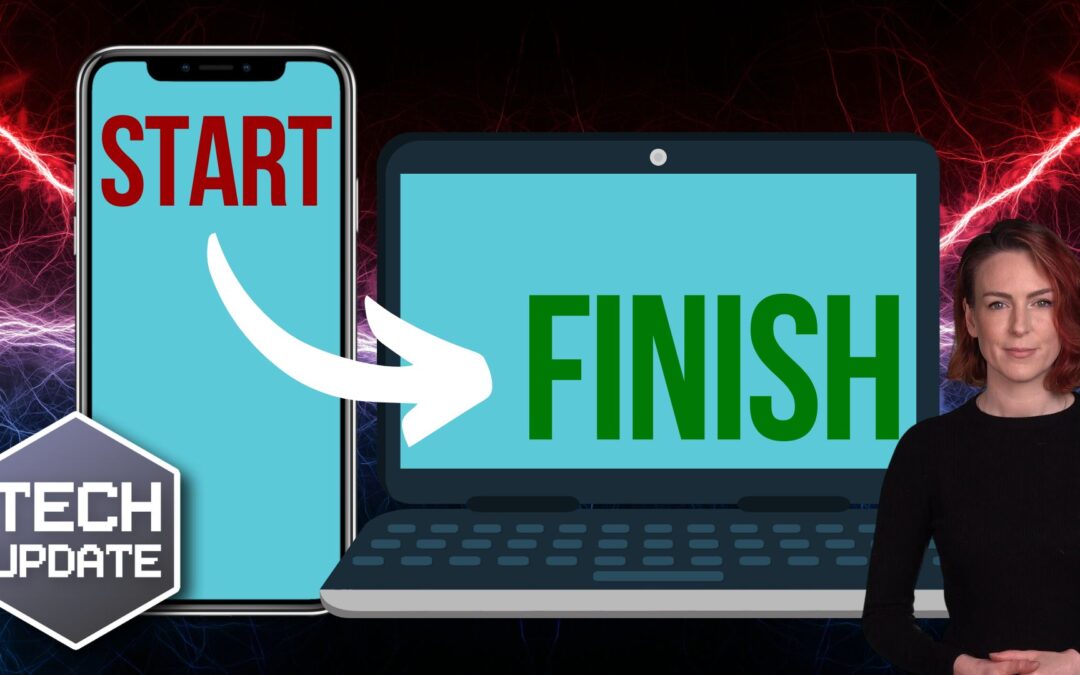
If you ever work on your phone as well as your PC, you’re going to love the new “Hand Off” feature that’s being tested right now.
The idea is this: Let’s say you’re in a meeting or on the move. And you start working on something in Microsoft Word or another app on your phone. Once you get back to your PC, a notification will pop up asking if you want to keep working on the document – allowing you to switch between devices seamlessly.
This feature is made possible through OneDrive’s syncing function. It’s already compatible with Android phones, and it’s likely to work for iPhones too, although that’s not yet been confirmed.
Being able to jump between devices without losing track of work could be a great benefit, especially if your team works remotely.
Although it hasn’t been rolled out just yet, “Hand Off” has clear potential to be a valuable tool for businesses.
Ready to find out more ways Windows 11 could boost productivity in your business? We can help, get in touch.
by Richard Jones | Nov 12, 2024 | Business, Cybersecurity, IT Management, Microsoft, Mobile, Productivity
Microsoft recently made changes to the Windows Start menu – and it caused a bit of an uproar.
Here’s what happened: Microsoft tried to streamline the Start menu by grouping related settings together. But they tucked the sign out option behind a three-dot menu, creating confusion for people trying to log out of their accounts.
Thankfully, Microsoft has listened to feedback and is now testing an update to put the sign out button back to where it was before.
This is good news for teams that have multiple profiles set up on one computer, making it easier to switch between accounts again.
These changes are part of a broader update to Windows 11 that’s currently being tested. The update will also bring in new features like media controls on the lock screen for when you’re playing music or videos, as well as the ability to share files directly from your search results.
These updates are great examples of small changes that can have a really positive impact on how your team works.
Is it time for you to move your business to Windows 11? We can help get you started, get in touch.
by Richard Jones | Sep 9, 2024 | Business, Cybersecurity, IT Management, Microsoft, Mobile, Working from Home
Microsoft recently announced that all Azure sign-ins will soon require multi-factor authentication (MFA) to boost security. Even if you don’t use Azure, a cloud computing platform, this is something you should pay attention to. Because MFA is one of the simplest and most effective ways to protect your digital assets.
What is multi-factor authentication? Think of it like adding an extra security measure to the door of your business.
Normally, you log into your accounts with just a password. But passwords aren’t as safe as they used to be; cyber criminals are good at cracking them. MFA adds another layer of security. It’s like saying, “OK, you have the key, but I’m going to need to see some ID too.”
After entering your password, you’re asked to verify your identity a second time. This could be a code sent to your phone, a fingerprint scan, or a quick tap on an app like Microsoft Authenticator. It’s an extra step, but an important one. Even if someone manages to steal your password, they’d still need this second form of verification to get into your account. That’s a massive roadblock.
Yes, adding another step to your sign-in process might sound like a hassle. But the reality is, it’s a small inconvenience that can save you a lot of trouble down the road. Imagine the fallout if someone gained access to your sensitive business information. The cost of a breach, in terms of both money and reputation, is much higher than the few extra seconds it takes to use MFA.
There are a few different ways to set up MFA. Some people prefer getting a one-time passcode via text message, while others like the convenience of a push notification on their phone. Biometric options, like fingerprints or facial recognition, are also becoming more common. And for those who want something extra secure, there are physical security keys that plug into your computer.
Microsoft’s push for MFA with Azure is just the tip of the iceberg. The truth is this kind of security measure is a business security basic.
Need help setting this up and making it easy for your business? It’s what we do. Get in touch.


